How to Connect Wearables to Music for Real-Time Tempo Sync
Jordan MillsAugust 18, 2026 · 10 min read
How to Connect Wearables to Music for Real-Time Tempo Sync
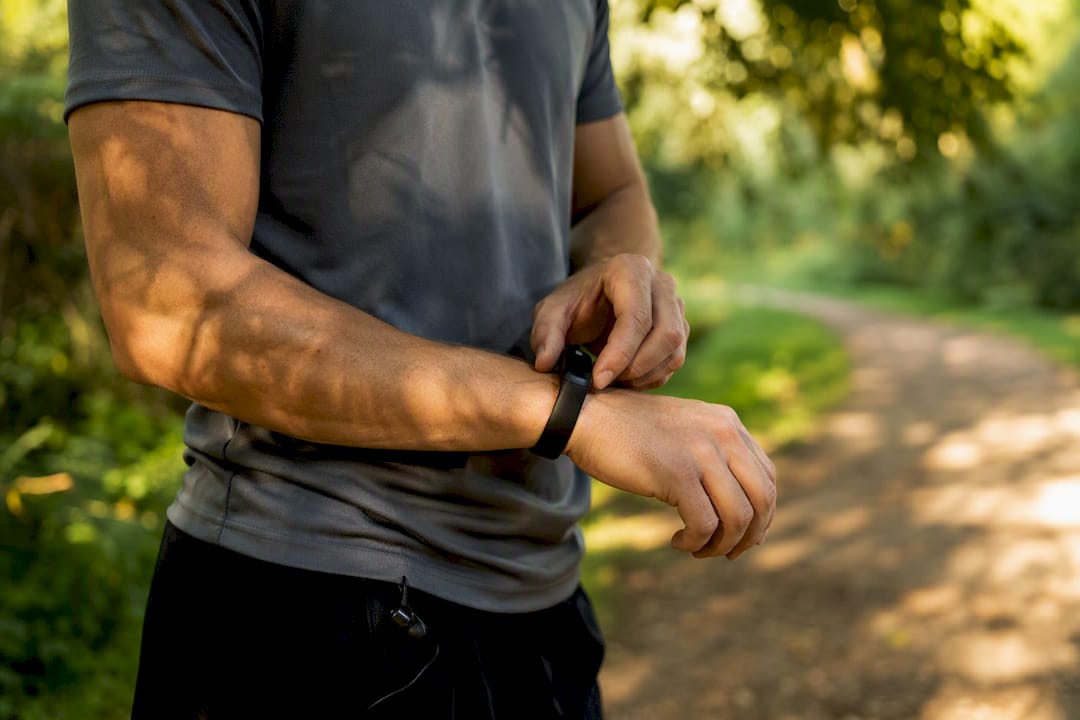
To connect wearables to music so tempo follows your body, you need two things: a wearable that broadcasts heart rate or cadence, and an adaptive-music app built to read that signal and remap BPM on the fly. Standard music apps just play tracks. Adaptive systems listen to your body first.
- Wearable: a heart rate strap, chest monitor, or watch that exposes live HR or cadence data (Apple Watch, Fitbit, or a footpod).
- Adaptive-music app: software that accepts that sensor feed and adjusts BPM in real time, rather than just shuffling a fixed playlist.
Repbeats is built exactly for this: it takes wearable HR and cadence input and updates the music’s BPM every bar, so you don’t have to build the mapping logic yourself.
Key Takeaways
Adaptive music works because matching tempo to heart rate or cadence lowers perceived effort and helps you sustain intensity longer than fixed playlists do.
| Point | Details |
|---|---|
| Pick your signal deliberately | Use cadence for stable step-tempo pacing and heart rate for tracking physiological effort. |
| Accuracy depends on hardware | A chest strap like the Polar H10 outperforms wrist PPG during sprints and high-intensity intervals. |
| Mapping rules shape the feel | Use 1:1 cadence mapping for high energy or 1:2 for calmer, slower-feeling tracks at the same cadence. |
| Test before you trust it | Run a short indoor session to confirm BPM stability and latency before relying on it outdoors. |
| Repbeats removes the setup work | Its auto-DJ accepts Apple Watch and Fitbit data and updates BPM every bar without manual mapping. |
Table of Contents
- Connecting Wearables to Music: How the Signal Becomes Tempo
- Which Wearable Signal Should Control Your Music?
- How Do You Set Up Wearable Music Sync?
- What BPM Should Your Wearable-Synced Music Target?
- Building a Playlist That Handles Tempo Changes Well
- What Are the Limits of Syncing Music to Your Wearable?
- Why Isn’t My Wearable Syncing With My Music App?
- Why Adaptive Tempo Is Worth Building Into Your Training
- Skip the Setup Work: Repbeats Handles the Mapping for You
- Frequently Asked Questions
- Sources
Connecting Wearables to Music: How the Signal Becomes Tempo
The pipeline is simple: wearable sensor reads your body, software conditions that signal, a mapping rule translates it into a target BPM, and the audio engine adjusts tempo at the next beat boundary. That last part matters more than people expect.
- Sampling rate: most wrist sensors update every 1 to 5 seconds; chest straps often stream faster and cleaner.
- Smoothing/filters: raw HR and cadence data is noisy, so software averages recent readings before it acts.
- Update frequency: good systems change tempo on musical bar or beat boundaries instead of mid-phrase, which is why Repbeats’ auto-DJ updates BPM every bar instead of every raw data tick.
Pro Tip: Faster updates feel more responsive but can make music jerky if your HR spikes briefly. Heavier smoothing feels calmer but lags behind sudden effort changes. Most runners do best with moderate smoothing, tight enough to track a real effort shift but not every twitch in the data.
Which Wearable Signal Should Control Your Music?
Cadence gives you the steadiest tempo control because it reflects your literal step rate. Heart rate is better when you want the music to track physiological effort, not just movement speed. Neither is wrong. They just answer different questions.
- Wrist PPG (Apple Watch, Fitbit): convenient and widely available, but prone to dropout during sprints or arm-heavy movement.
- Chest-strap HR (Polar H10): more accurate under hard efforts and quick changes, at the cost of an extra piece of gear.
- Footpod or accelerometer cadence: very stable for step-tempo mapping, largely immune to the motion noise that throws off wrist HR.
- GPS pace: useful outdoors but slow to update and useless on a track or treadmill with poor signal.
If your workout is a steady tempo run, sync to cadence. If it’s an interval session where effort swings hard, heart rate captures that better, and a Polar H10 chest strap will track those swings more reliably than a wrist sensor.
How Do You Set Up Wearable Music Sync?
Getting your first adaptive session running takes about ten minutes, most of it spent granting permissions. Here’s the sequence:
- Install an adaptive-music app. Repbeats is built specifically to consume HR and cadence data, so it’s the fastest path if you don’t want to configure mapping rules yourself.
- Pair your wearable or authorize data sharing. On iOS this usually means granting HealthKit access; on Android it’s a Bluetooth pairing plus a sensor-permission prompt.
- Choose your sync mode. Pick cadence sync for pacing consistency or heart rate sync for effort tracking.
- Set your BPM mapping rules. Define your target ranges, for example a warm-up band and a work-interval band.
- Run a short test session. Five to ten minutes indoors is enough to confirm the signal is stable before you take it outside.
Permissions checklist before you start:
- Bluetooth enabled and set to stay active in the background.
- Location services on, if your app uses GPS pace as a secondary signal.
- Health data sharing authorized for the specific app, not just the wearable itself.
- Notifications allowed, so you catch a dropped connection instead of running silent.
During your test run, watch for three things: does the BPM change land on a beat instead of mid-phrase, does the reported HR or cadence roughly match what you expect from effort, and does the connection survive a phone in your pocket versus an armband. If any of those look wrong, fix it before your real session, not during it.
What BPM Should Your Wearable-Synced Music Target?
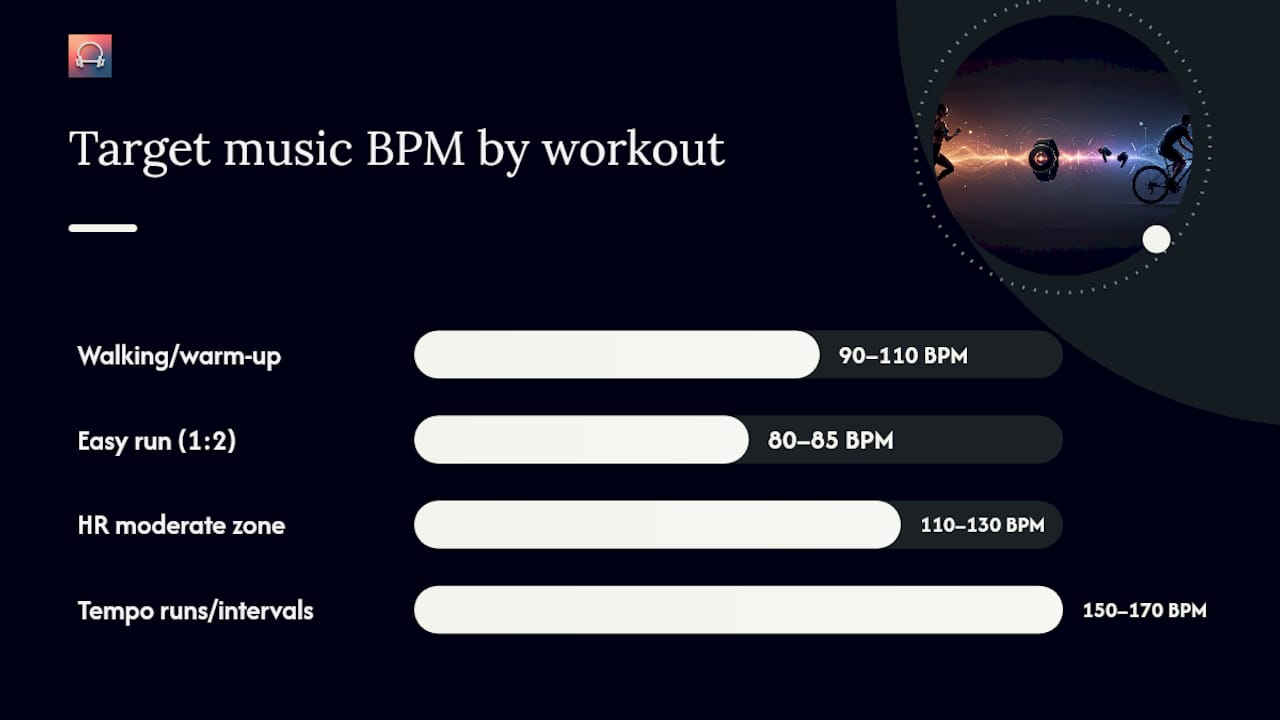
The mapping rule you pick changes how the workout feels more than almost any other setting. A 1:1 cadence mapping matches music BPM directly to your steps per minute, so a 170 step-per-minute cadence gets 170 BPM music. A 1:2 mapping halves that, giving you 85 BPM music under the same cadence, which works better for slower, more atmospheric tracks that would sound frantic at full speed.
Rough starting bands:
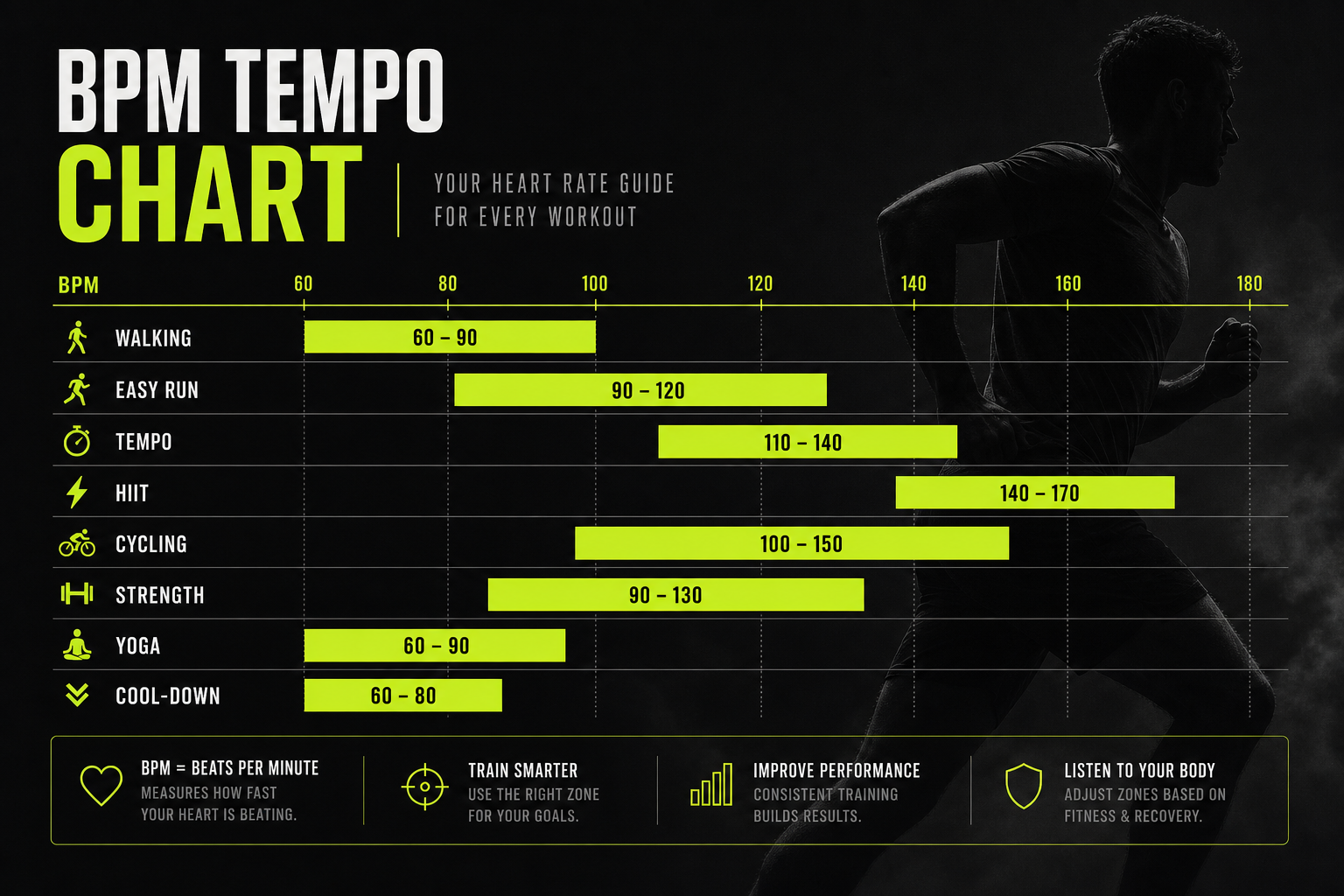
- Walking or warm-up: 90 to 110 BPM.
- Easy run at 160 to 170 cadence: map at 1:2 for 80 to 85 BPM ambient tracks, or 1:1 for full-tempo energy.
- Tempo runs or intervals: push into the 150 to 170 BPM range, where high-tempo music has been shown to cut perceived exertion by roughly 11 percent in endurance efforts.
Heart rate mapping works differently: you set BPM bands to physiological zones instead of step counts, so your resting-to-moderate zone might map to 110 to 130 music BPM and your hard-effort zone to 150 plus.
Pro Tip: Cap how fast BPM is allowed to change per minute. Without a rate limit, a brief HR spike from a hill or a red light can yank the tempo up 20 BPM in seconds, which feels less like motivation and more like a skipping record.
Building a Playlist That Handles Tempo Changes Well
Songs with a buried or syncopated beat don’t hold up under tempo-shifting software. You want tracks where the beat is obvious enough that a listener could tap along without thinking about it.
- Favor songs with a strong, consistent downbeat over ones with heavy rubato or tempo drift.
- Avoid tracks that rely on a big tempo change as part of their own composition.
- Stock your library with songs already near your target BPM bands so the software isn’t stretching audio too aggressively.
- Where available, let generative or algorithmic playback fill gaps between tracks instead of relying on hard cuts.
Pro Tip: A BPM-tagged library saves you from guessing. Repbeats’ auto-DJ searches by BPM and updates tempo every bar, which keeps transitions gapless instead of jarring cuts between mismatched tracks.
What Are the Limits of Syncing Music to Your Wearable?
Sensor noise, latency, and shifting perceived exertion are the three things that can undercut an otherwise solid setup. None of them are dealbreakers, but all of them are worth knowing before you build a session around live biofeedback.
- Motion artifacts throw off wrist PPG accuracy, especially during sprints or upper-body-heavy movement.
- Wrist sensors are the most likely to fail exactly when you need them most: hard efforts with a lot of arm swing.
- Continuous sensor streaming and constant Bluetooth activity drain battery faster than passive playback.
- Sharing live health data with a third-party app is a real privacy trade-off, so check what the app stores and for how long.
- Switch to a chest strap like the Polar H10 when accuracy during high-intensity intervals matters more than convenience.
A safety note worth taking seriously: don’t let HR-synced tempo talk you into pushing past what your body is telling you. Music can lower how hard an effort feels without lowering how hard it actually is on your heart, so anyone managing a cardiac condition or other high-risk factor should check with a coach or clinician before building workouts around HR-driven tempo.
Why Isn’t My Wearable Syncing With My Music App?
Most connection failures fall into four buckets: no signal reaching the app, tempo that doesn’t match your actual effort, noticeable lag, or a permission that was never granted in the first place.
- Recheck app permissions first. This fixes the majority of “no signal” complaints.
- If heart rate readings look erratic, switch to a chest strap; wrist PPG is the usual culprit.
- On mobile, confirm Bluetooth and location can run in the background, since OS-level battery optimization often kills them silently.
- Run a short indoor test before trusting the setup outdoors, where signal drops are harder to diagnose mid-run.
Pro Tip: Run a five-minute indoor test before every new setup change. Watch three things: does BPM stay stable rather than jittering, is there a noticeable delay between an effort change and a tempo change, and does the session feel like it matches your actual perceived exertion.
Why Adaptive Tempo Is Worth Building Into Your Training
Sustaining intensity often comes down to whether effort feels manageable, not just what a heart rate monitor reports. The research on synchronized cadence and high-tempo music backs that up, showing real gains in time to exhaustion when the beat tracks the body instead of running on autopilot. Try one 20 to 30 minute session with cadence sync before judging whether it’s worth the setup time.

Skip the Setup Work: Repbeats Handles the Mapping for You
Repbeats gives you a turnkey adaptive-music system that already accepts both heart rate and cadence input, so you’re not building mapping rules or testing latency by trial and error.
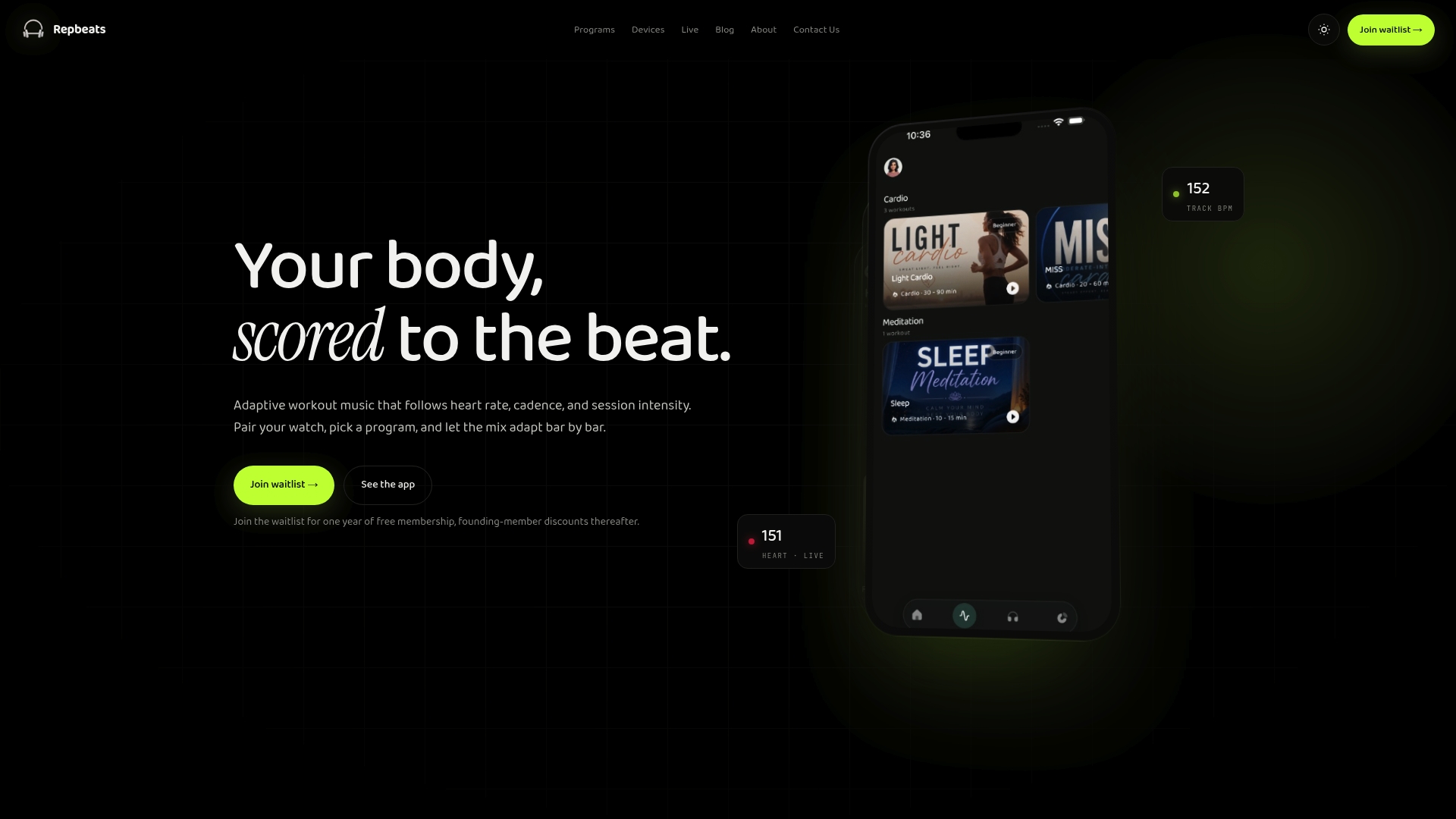
The features that matter most from this guide come built in: auto-DJ technology that updates BPM every single bar, direct integrations with Apple Watch and Fitbit, a searchable library organized by BPM, and customizable mapping rules for cadence-sync or heart-rate-sync sessions. Instead of assembling a BPM-tagged playlist by hand or testing smoothing settings against your own noisy wrist sensor, you open one app and pick your sync mode. Repbeats currently runs on a free trial before paid subscription tiers kick in. Head to Repbeats and start a session with your own wearable to see how your next run, ride, or meditation feels when the tempo actually tracks you.
Frequently Asked Questions
Can I connect wearables to music without a chest strap? Yes. Wrist-based sensors on an Apple Watch or Fitbit work fine for steady efforts. A chest strap like the Polar H10 only becomes necessary when you need accurate data through sprints or fast effort changes.
Does connecting wearables to music drain my phone’s battery faster? Continuous Bluetooth streaming and background health-data access do use more battery than passive playback, so expect noticeably faster drain on long sessions.
Which is better for beginners: cadence sync or heart rate sync? Cadence sync is easier to understand and more stable for beginners, since it reflects a simple step count. Heart rate sync takes more calibration but rewards you with tempo that tracks actual effort.
Do I need Spotify or Apple Music to use adaptive workout music? Not necessarily. Apps like Repbeats use their own BPM-tagged library and auto-DJ engine, so you’re not limited to whatever tempo-tagged tracks happen to exist in a standard streaming catalog.
Sources
- The Psychophysiological Effects of Different Tempo Music on Endurance Versus High-Intensity Performances
- The Power of Auditory-Motor Synchronization in Sports: Enhancing Running Performance by Coupling Cadence with the Right Beats | PLOS One