Fitbit Heart Rate Zones: What They Mean and How to Use Them
Jordan MillsAugust 19, 2026 · 10 min read
Fitbit Heart Rate Zones: What They Mean and How to Use Them
Fitbit heart rate zones are personalized intensity ranges, based on your heart rate reserve on most current devices, that show whether you’re working at light, moderate, vigorous, or peak effort. Fitbit rewards time in these zones with Active Zone Minutes, counting moderate effort at 1 minute per minute and vigorous or peak effort at 2 minutes per minute. The main labels break down like this:
- Light/Below Zone: easy movement, minimal training effect
- Moderate/Fat Burn: comfortable but sustained effort, earns 1x AZM
- Vigorous/Cardio: hard, breath-shortening pace, earns 2x AZM
- Peak: near-max effort, also earns 2x AZM
Key Takeaways
Fitbit heart rate zones work because they personalize intensity to your actual heart rate reserve, and Active Zone Minutes reward harder effort at double the rate of moderate effort.
| Point | Details |
|---|---|
| Zones are personalized | Fitbit uses heart rate reserve on most devices, not a flat age-based formula. |
| AZM rewards intensity | Moderate effort earns 1x AZM per minute; vigorous or peak effort earns 2x. |
| Fit affects accuracy | Wear the device 2 to 3 finger widths above the wrist bone during workouts for cleaner readings. |
| Match zones to goals | Use moderate zone for base fitness, vigorous or peak zone for intervals and performance work. |
| Pair zones with music | Repbeats syncs music tempo to your Fitbit’s heart rate feed to help you hold a target zone. |
Try This 20-Minute Test to See Your Zones in Action
Want proof this all works before overthinking it? Try a 10-minute easy warm-up followed by eight 1-minute peak intervals with 1-minute recovery between each. Watch the AZM tile fill up in real time, and if you’ve got music that shifts tempo with effort, notice how much easier the hard minutes feel.
Pair Your Zones With Music That Moves With You
Holding a target zone is harder than reading about it. Your pace drifts, a song slows you down right when you need to push, and suddenly that vigorous-zone interval turns into a moderate one. Repbeats reads your Fitbit’s real-time heart rate and adjusts the music’s BPM every bar, so the track itself pulls you toward your target zone instead of working against it.
If you’re training for endurance, chasing more AZM, or just tired of playlists that don’t match your effort, this closes that gap directly. Start a free trial at Repbeats and pair your next workout with music that actually tracks your zones, or read how to create heart rate music zones for a step-by-step setup guide.
Table of Contents
- How Fitbit Calculates and Personalizes Heart Rate Zones
- What Are the Numeric Fitbit Heart Rate Zone Ranges?
- What Are Active Zone Minutes and How Do You Earn Them?
- How Do You View and Set Up Your Heart Rate Zones on Fitbit?
- Which Heart Rate Zone Should You Train In?
- Why Are My Fitbit Heart Rate Readings Inconsistent?
- Can Adaptive Music Help You Hold a Target Heart Rate Zone?
- Frequently Asked Questions
- Sources
How Fitbit Calculates and Personalizes Heart Rate Zones
Fitbit doesn’t just plug your age into a generic formula. On most current devices, it uses heart rate reserve (HRR), the gap between your resting heart rate and your estimated maximum heart rate. This is the Karvonen method: subtract resting heart rate from max heart rate to get your reserve, then calculate zone boundaries as a percentage of that reserve, added back to your resting rate.
Why does this matter? Two 40 year olds can have wildly different fitness levels. Someone with a resting heart rate of 50 has a bigger reserve to work with than someone sitting at 75, even if their max heart rates are identical. Fitbit’s HRR-based system accounts for that difference automatically.
Some older or entry-level devices fall back to age-based max heart rate percentages instead. Harvard Health notes that the standard 220 minus age formula can miss actual max heart rate by 10 beats per minute or more, which is exactly why personalized methods produce more useful, trustworthy training boundaries.
What Are the Numeric Fitbit Heart Rate Zone Ranges?
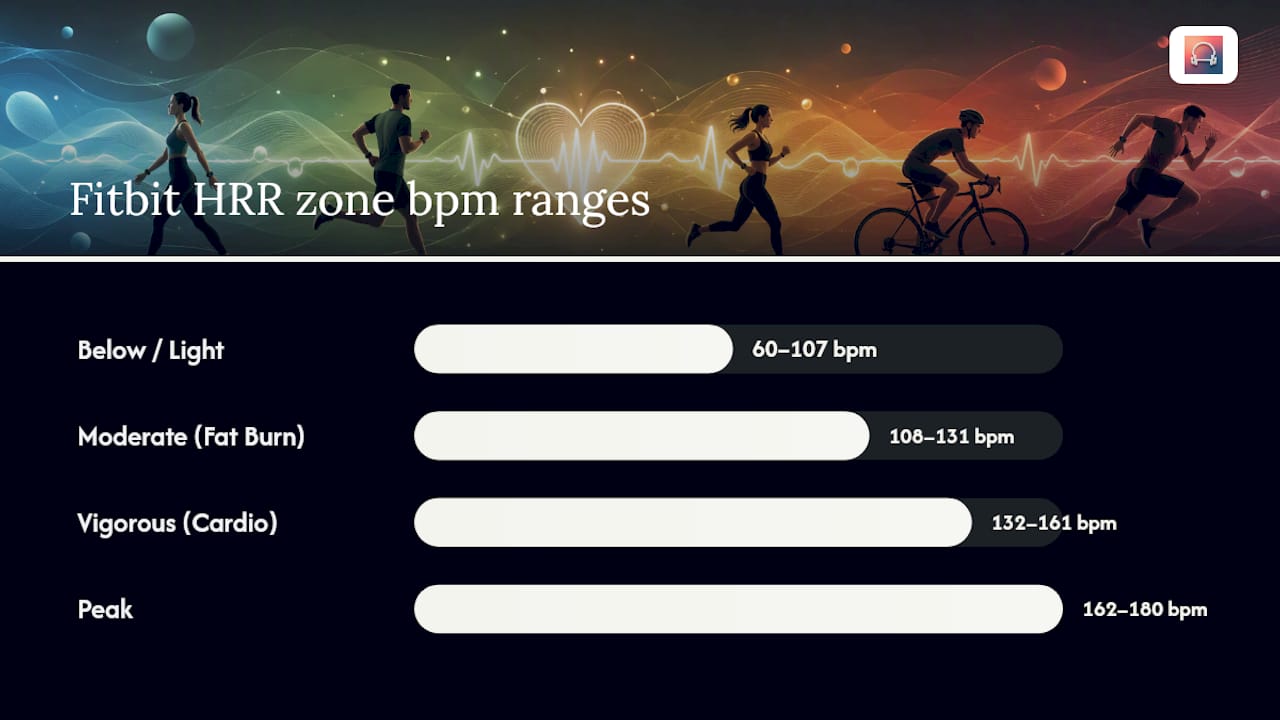
Here’s how the percentages break down on devices using heart rate reserve, according to Fitbit’s own zone documentation:
- Below/Light: under 40% of HRR
- Moderate/Fat Burn: 40 to 59% of HRR
- Vigorous/Cardio: 60 to 84% of HRR
- Peak: above 85% of HRR
Devices that fall back on age-based max heart rate percentages instead use roughly: Fat Burn at 50 to 69% of max heart rate, Cardio at 70 to 84%, and Peak above 85%.
Here’s a worked example. Say your resting heart rate is 60 bpm and your estimated max heart rate is 180 bpm. Your reserve is 120 beats (180 minus 60). Moderate zone starts at 40% of that reserve, added to your resting rate: 60 + (0.40 x 120) = 108 bpm. The vigorous zone starts at 60%: 60 + (0.60 x 120) = 132 bpm. Peak kicks in around 60 + (0.85 x 120) = 162 bpm. McMillan Running recommends this exact HRR method over simpler age-based math for anyone serious about training precision.
What Are Active Zone Minutes and How Do You Earn Them?
Active Zone Minutes give you credit based on how hard you’re working, not just how long you’re moving. Fitbit’s system awards:
- 1 AZM per minute spent in the moderate zone
- 2 AZM per minute spent in the vigorous or peak zones
That doubling matters. A 20-minute run mostly in the vigorous zone can bank 30 to 40 AZM, while 20 minutes of brisk walking in the moderate zone banks 20. This structure lines up with public health guidance: the World Health Organization recommends 150 minutes of moderate activity or 75 minutes of vigorous activity weekly, which maps almost directly onto a weekly AZM target of 150.
On the device itself, zone shifts trigger haptic buzzes, with different buzz patterns signaling moderate, vigorous, or peak status so you can feel the transition without checking the screen mid-workout.
How Do You View and Set Up Your Heart Rate Zones on Fitbit?
Finding your personalized zones and setting up alerts takes just a few taps.
- Open the Fitbit app and tap the Today tab, then select the Active Zone Minutes tile to see your daily and weekly totals.
- During or after a workout, check the exercise summary screen for a breakdown of time spent in each zone.
- On the watch itself (Charge, Versa, or Sense models), swipe to the Active Zone Minutes or heart rate app for a real-time zone display.
- To enable buzz alerts, go to your exercise settings in the app and toggle on heart rate zone notifications before starting a workout.
- To set an AZM goal, open the Active Zone Minutes tile and adjust your weekly target, or set a session-specific goal from the exercise app on your device.
Pro Tip: Set your weekly AZM goal to 150 first, matching the WHO guideline, then adjust upward once you’re consistently hitting it without feeling wiped out.
Which Heart Rate Zone Should You Train In?
Zone choice depends entirely on what you’re training for. Fitness professionals generally build programs around a mix, not a single zone, and certified trainers point out that balance matters more than chasing intensity every session.
- Base building and endurance: spend most of your time in the moderate zone, holding a pace you could sustain in conversation.
- Tempo and threshold work: push into the low vigorous zone for sustained but hard efforts.
- Interval and performance training: hit peak zone in short bursts with recovery between.
- Recovery days: stay in the light zone, keeping effort low enough that your body actually repairs.
A few sample sessions to try:
- Easy 30-minute walk or jog: moderate zone throughout, roughly 25 to 30 AZM.
- 20-minute tempo run: 15 minutes vigorous zone, banking around 30 AZM in a shorter window.
- 8 x 1-minute intervals: alternating peak zone efforts with light zone recovery, often earning 15 to 20 AZM in under 25 minutes total.
Most weeks benefit from three or four moderate sessions and one or two harder efforts, with at least one full recovery day worked in — and marketing teams can test fitness creatives with an AI Ad Generator for Fitness tool to help promote active lifestyles effectively.
Why Are My Fitbit Heart Rate Readings Inconsistent?
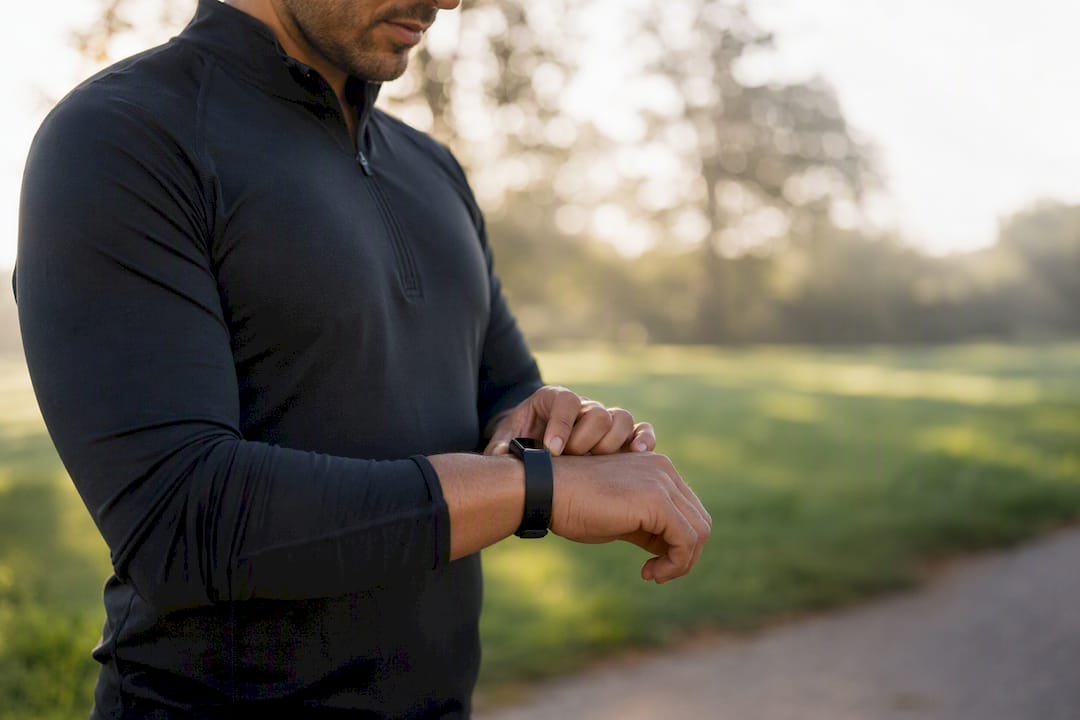
Bad data usually comes down to fit, not the device malfunctioning. Fitbit’s guidance recommends wearing the band 2 to 3 finger widths above your wrist bone during workouts, snug enough that it doesn’t shift but not so tight it’s uncomfortable. A loose band during a run is one of the most common causes of erratic spikes and dropouts.
If readings still look off, try these fixes:
- Restart the device and re-sync it with the app.
- Double check your profile settings, especially resting heart rate.
- Install any pending firmware updates.
- Clean the sensor area on the back of the band.
Pro Tip: During short, hard intervals, don’t fully trust the number on your wrist. Heart rate can lag 30 to 60 seconds behind sudden effort changes, so pair it with a simple talk test or perceived exertion check to know how hard you’re actually working.
Can Adaptive Music Help You Hold a Target Heart Rate Zone?
Once you know your zones, the next challenge is actually staying in them, and that’s where tempo becomes a useful tool. Music with a beats-per-minute count that matches your target effort can nudge your pace up or down without you thinking about it, since your stride and breathing tend to sync to what you’re hearing.

A simple setup: pick your target zone, choose a BPM range that corresponds to that effort level, and let a buzz notification tell you when it’s time to shift tempo. Repbeats reads live heart rate data from Fitbit and adjusts music tempo in real time to help hold that intensity, a concept explained in more detail in how to create heart rate music zones and in how wearables measure exercise intensity.
| Point | Details |
|---|---|
| Zone shifts, music follows | Faster BPM tracks can help push you from moderate into vigorous effort. |
| Buzz as a cue | Use zone notifications as the signal to change your playlist tempo. |
| Works with existing data | Adaptive tools pull directly from your Fitbit’s real-time heart rate feed. |
Frequently Asked Questions
What is a good heart rate zone for weight loss? The moderate zone, often labeled Fat Burn, is where most people sustain effort long enough to burn meaningful calories without burning out. Longer sessions here plus occasional vigorous work tend to outperform staying in one zone alone.
Why don’t my Fitbit zones match my friend’s zones at the same effort? Zones are personalized to your heart rate reserve, so two people running side by side at the same pace can land in different zones depending on their resting and max heart rates.
Can I manually adjust my Fitbit heart rate zones? Yes. Some Fitbit devices and the app allow custom zone adjustments if you know your actual tested max heart rate rather than relying on the estimate.
Do Active Zone Minutes reset every week? Yes, AZM totals reset weekly, aligning with the WHO’s weekly activity guidelines of 150 minutes moderate or 75 minutes vigorous activity.
Why does my Fitbit show inconsistent heart rate during interval training? Optical sensors can lag behind sudden effort changes by 30 to 60 seconds, so short intervals sometimes show delayed readings. Checking fit and placement helps, but some lag is normal during rapid pace changes.
Sources
For anyone who wants to dig into the technical or scientific backing behind this guide, these are the sources it draws from:
- Earn Active Zone Minutes for time spent in the moderate, vigorous, or peak heart-rate zones
- Understanding exercise heart rate zones - Harvard Health
- WHO physical activity fact sheet