Apple Watch: Autoplay and Offline Workout Music, Plus Repbeats
Jordan MillsSeptember 15, 2026 · 9 min read
Apple Watch: Autoplay and Offline Workout Music, Plus Repbeats
Apple Watch lets you play, pause, skip, and adjust volume without touching your phone. With watchOS 26, it does more of the work for you. Before your next session, do one thing first: pair your Bluetooth headphones and either turn on Autoplay Media or download a playlist for offline use. Get that right, and the rest of your workout music runs itself.
TL;DR:
- Apple Watch’s music controls are accessible via swipe, Digital Crown, or Siri, but pre-setting playlists and checking Bluetooth connections improves reliability.
- Autoplay Media can automatically start your workout playlist based on context, but it won’t override music already playing when you begin a session.
- Offline music requires explicit prep, including syncing playlists to the watch and ensuring Bluetooth headphones are connected before exercising.
- watchOS 26 simplifies music setup within the Workout app and offers quick access buttons, reducing interruption during sessions.
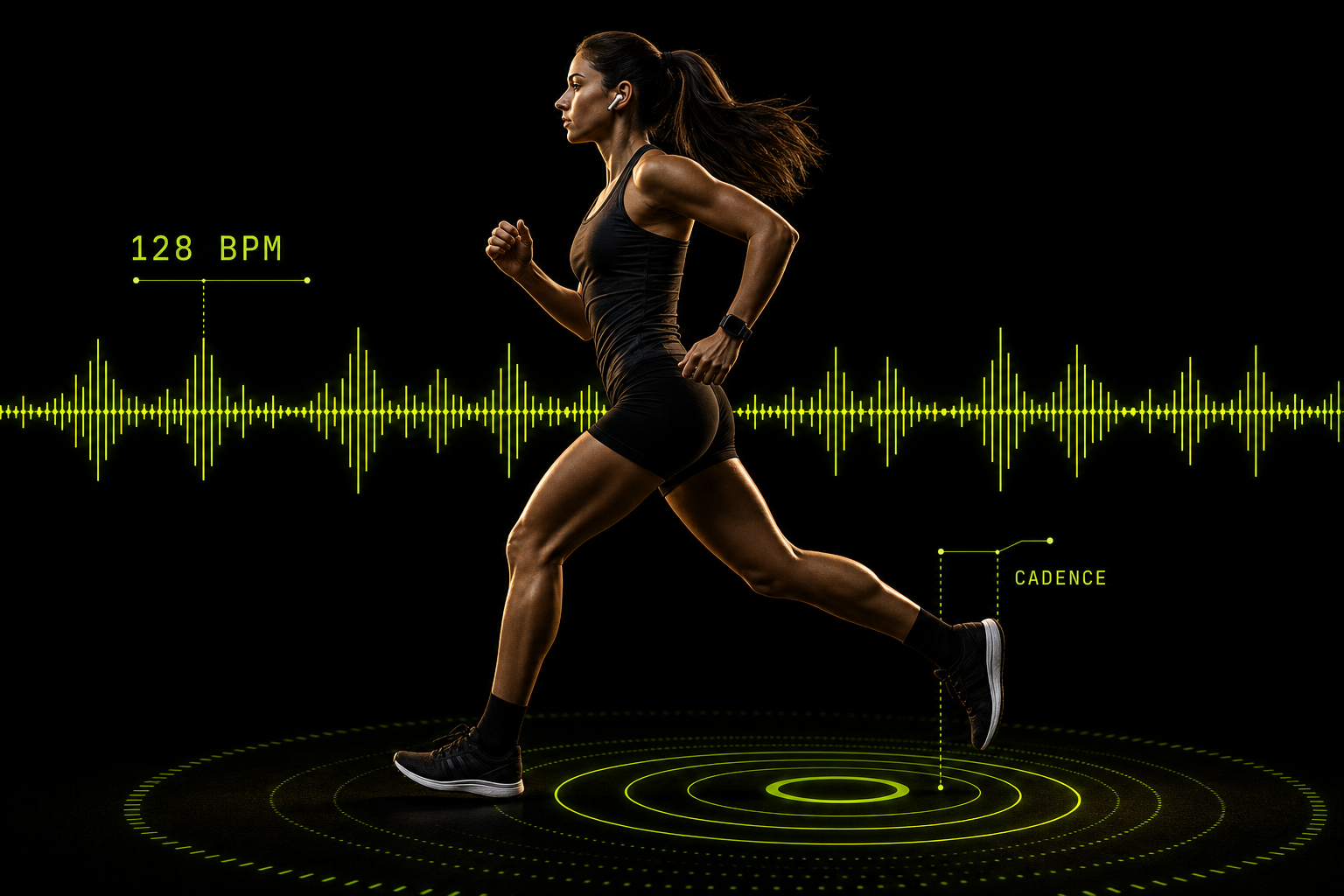
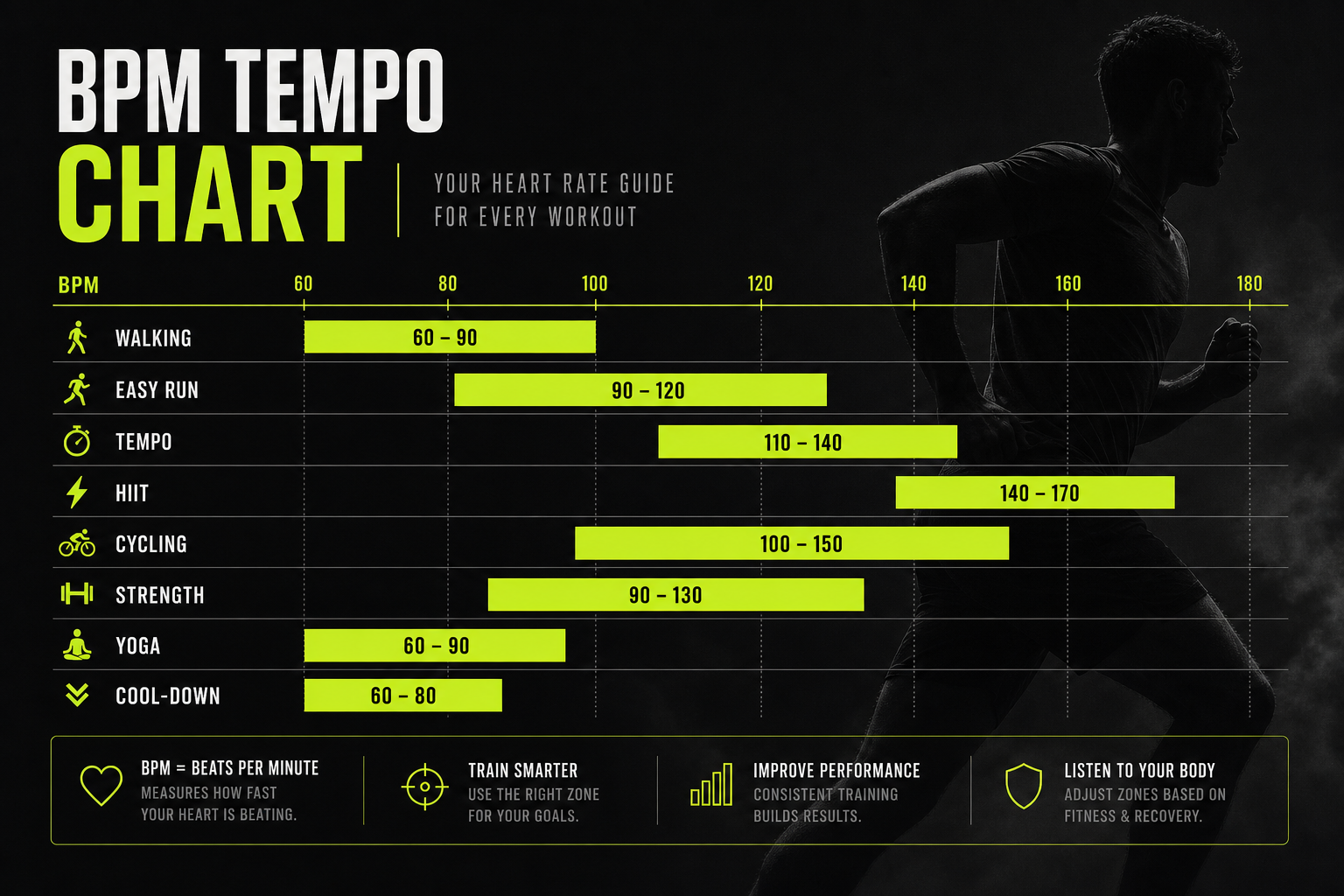
- Adaptive apps like Repbeats create tempo-matched music by syncing to real-time heart rate and cadence, useful for interval training and cadence-driven runs.
Table of Contents
- How to control music playback during an Apple Watch workout
- How to set up autoplay so your gym playlist starts automatically
- Getting music ready for offline runs and pairing headphones
- What watchOS 26 changes for workout music
- Why adaptive, BPM-synced music is worth layering on top
- Repbeats: music that keeps pace with your actual effort
- Sources
- FAQ
How to control music playback during an Apple Watch workout
Start a workout, then swipe left on the workout screen. That gesture pulls up Now Playing, which gives you play, pause, and skip controls without leaving your session. If you’d rather browse, tap the Music app icon instead and pick a specific track or playlist mid-workout.
Volume lives on the Digital Crown. Turn it while Now Playing is open and the volume slider adjusts instantly, no menu digging required. On the same screen, a double tap or the previous track button on paired headphones jumps back a song, though the exact gesture depends on your headphones’ controls.
Audio destination switching happens on the watch too. Tap the AirPlay icon inside Now Playing to move sound between paired headphones, your iPhone, or any AirPlay-enabled speaker, all without opening a separate app.
A few shortcuts worth setting up before you rely on them:
- Add the Now Playing complication to your workout watch face for one-tap access.
- Use Smart Stack to surface playback controls automatically once music starts.
- Say “Hey Siri, skip this song” or “Hey Siri, pause” for hands-free control mid-set.
- Long-press the Digital Crown to summon Siri if raise-to-speak isn’t reliable during motion.
Pro Tip: Set the Now Playing complication on the same watch face you use for workouts, not a separate one. Switching faces mid-run just to skip a track defeats the entire point of wrist controls.
How to set up autoplay so your gym playlist starts automatically
Autoplay Media removes the step of manually starting a playlist before every session. Here’s how to turn it on and configure it:
- Open the Workout app on your Apple Watch and select a workout type.
- Before starting, tap the music icon and toggle on Autoplay Media.
- Choose between “Picked for You,” Apple Music’s automatic suggestions, or a specific playlist you’ve already saved.
- Start your workout. Music begins playing within seconds, matched to the workout type you selected.
“Picked for You” leans on your listening history and the workout type to guess what you want to hear, and as of watchOS 26 that guess factors in more context than earlier versions did, according to Apple Support. It’s convenient for casual sessions where you’re not picky. A specific playlist works better for structured training, like interval runs where you want the same tempo pattern every time, because automatic suggestions can drift toward whatever you’ve been streaming lately rather than what suits the workout ahead.
One detail that trips people up: if music is already playing when you start a workout, Autoplay Media typically won’t override it. The watch assumes you’ve already chosen your soundtrack and leaves it running rather than switching to your assigned playlist.
Getting music ready for offline runs and pairing headphones
Adding a song to your Apple Music library does not mean it’s stored on your watch. You have to explicitly download it. On your iPhone, open the Apple Watch app, go to Music, and select which playlists or albums sync to your wrist. On the watch itself, open Music, find the playlist, and tap the download icon before you head out the door.
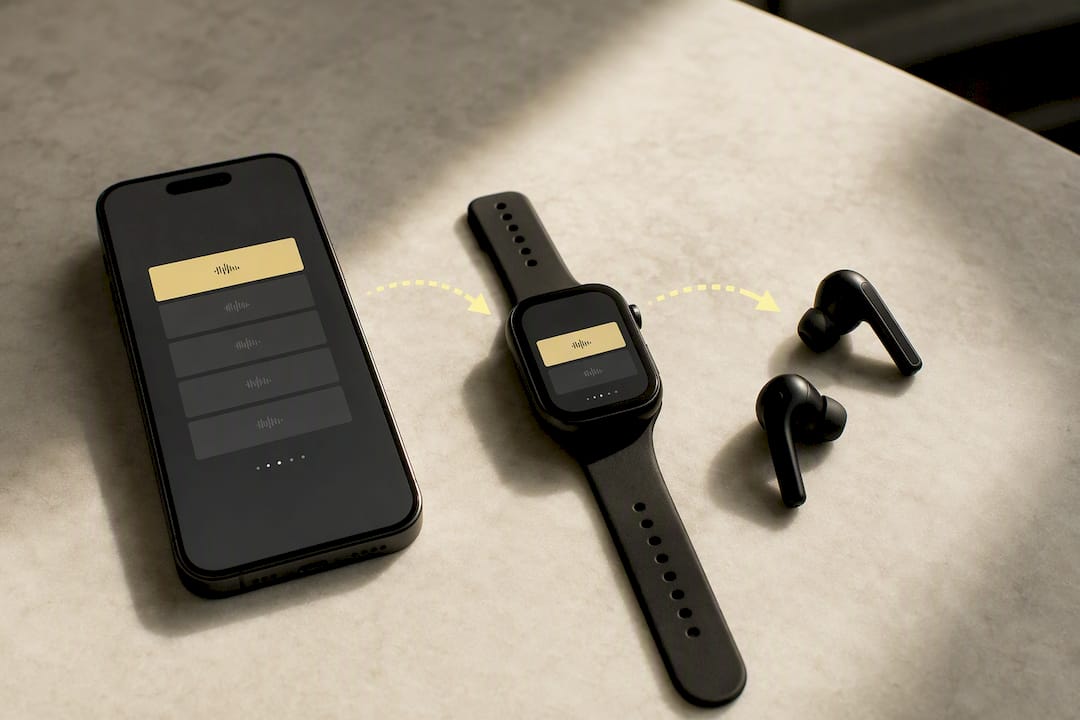
Bluetooth headphone pairing works the same way it does for any accessory: open Settings on your watch, tap Bluetooth, put your headphones in pairing mode, and select them from the list once they appear. The connection should show as “Connected” before you leave, since downloading directly to the watch only solves half the problem if your headphones drop mid-run.
Run through this before every offline session:
- Confirm your playlist shows a download checkmark, not just a cloud icon.
- Check watch battery, since playing downloaded music without your phone draws more power than a paired-phone session.
- Verify headphones say “Connected” in Bluetooth settings, not just “Paired.”
- Favor headphones with physical buttons over touch controls, since sweat and sleeve contact cause fewer accidental taps on physical buttons than on touch-sensitive surfaces.
The built-in watch speaker is not a workout audio destination worth relying on. It’s fine for notifications, not for music you actually want to hear over your own breathing.
What watchOS 26 changes for workout music
watchOS 26 folded music setup directly into the Workout app instead of leaving it as a separate step, and added corner buttons that put playback and other quick actions one tap away during a session, according to MacRumors’ coverage of the redesign. That’s a real fix for a real annoyance: switching apps mid-set to change a song used to break focus more than it should have.
The intelligent suggestions built into this update use your workout type and listening history to guess what fits, a shift toward personalization that reduces mid-session selection friction. That’s genuinely useful for casual cardio. For anything with a set structure, a manual playlist still beats an algorithm’s guess.
A few habits that keep things running smoothly regardless of watchOS version:
- Pre-download playlists the night before, not while you’re lacing up.
- Test your audio destination once before a run so you’re not troubleshooting AirPlay at minute two.
- Save AirPlay for stationary equipment like a treadmill, not for outdoor runs where range drops fast.
- Default to voice commands only when your hands are genuinely full; on-watch taps are usually faster.
Pro Tip: If your playlist skips or lags right after a workout starts, it’s almost always a Bluetooth handshake delay, not a downloading problem. Give it five seconds before you start troubleshooting.
Why adaptive, BPM-synced music is worth layering on top
Apple’s controls solve access. They don’t solve pacing. A fixed playlist plays the same tempo whether you’re warming up or hitting your last interval, and that mismatch is why a lot of runners drift off pace without noticing.
Adaptive music apps close that gap by syncing tempo to live wearable data instead of a static tracklist. Repbeats, for instance, adjusts BPM bar by bar based on your heart rate and cadence, pulled from Apple Watch or Fitbit in real time. That kind of tempo matching earns its keep specifically in interval work and cadence-driven runs, where holding a rhythm matters more than song choice.
My honest read: use Apple’s autoplay for convenience on easy days, and switch to something adaptive when the session actually demands structure. They’re not competing tools. They solve different problems.
— Jordan Mills
Repbeats: music that keeps pace with your actual effort
Apple’s autoplay picks a playlist. Repbeats adjusts the music itself while you’re moving, updating BPM every bar based on your live heart rate and cadence instead of locking you into a fixed tempo for the whole session.
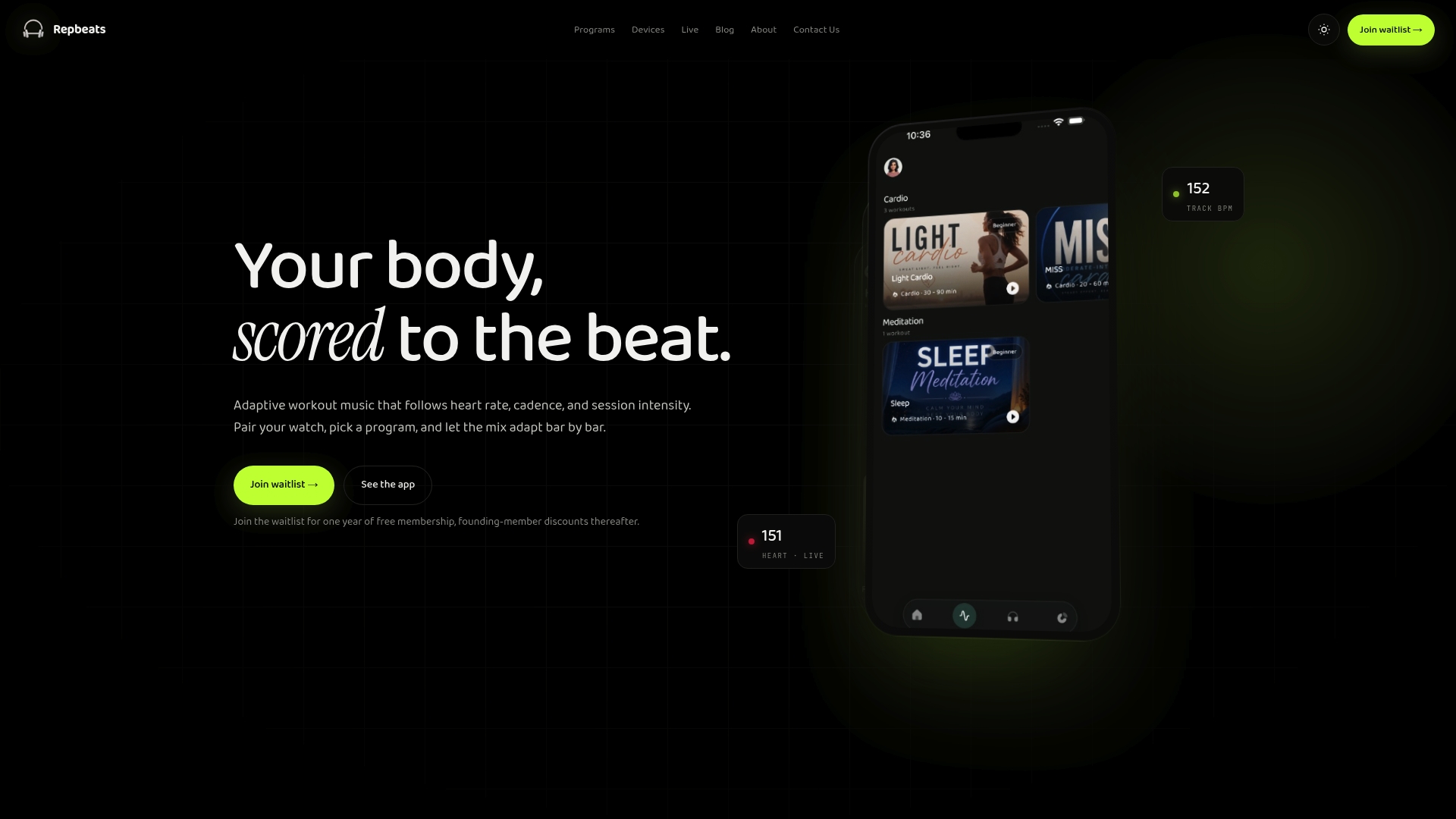
That distinction matters most in structured training. If your workout involves intervals, tempo runs, or cadence targets, a playlist that speeds up and slows down with you does something Apple’s controls alone can’t. Repbeats pulls data straight from your Apple Watch or Fitbit, and its auto-DJ technology handles the tempo math so you’re not manually swapping playlists between effort zones. For readers who already use Apple Music’s autoplay for casual sessions, this is the layer to add once training gets specific.
Repbeats is currently in early access, with pricing details available on its website. Learn more about how the adaptive engine works on the Repbeats about page or head to Repbeats to join the waitlist and try it on your next structured session.
Sources
- Play music on Apple Watch — Apple Support
- Apple Watch Workout App Gets Corner Buttons, Music Integration in watchOS 26 — MacRumors
FAQ
How can I listen to music while exercising with my Apple Watch?
Pair Bluetooth headphones, then either enable Autoplay Media in the Workout app or start a playlist manually through the Music app before or during your session.
How do I stop my Apple Watch from controlling music?
Turn off Autoplay Media in the Workout app’s music settings, and control playback from your iPhone or another device instead if you’d rather not use the watch.
How do I get music controls on my Apple Watch?
Swipe left on the workout screen to open Now Playing, or add the Now Playing complication to your watch face for one-tap access without opening the Workout app first.
Can I listen to music on my Apple Watch while running without my phone?
Yes, as long as you’ve downloaded the playlist or album to your watch beforehand and paired Bluetooth headphones, since streaming without a phone connection isn’t possible.
Does Repbeats work with Apple Watch during workouts?
Yes. Repbeats pulls live heart rate and cadence data from Apple Watch and adjusts music tempo bar by bar to match your workout intensity in real time.