Apple Watch Heart Rate Zones and Music: How to Match Them
Jordan MillsNovember 8, 2026 · 12 min read

Apple Watch Heart Rate Zones and Music: How to Match Them
Apple Watch calculates five heart rate zones for you, shows your live zone during cardio workouts, and can start music when a workout begins. What it does not do on its own is change the tempo of your music as your zone changes. You choose the playlist, then tune it to your zones by hand, or you let an adaptive music app handle the matching. This guide covers how the zones work, how to see and edit them, and how to build a soundtrack around them.
TL;DR
- Apple Watch builds five zones from your date of birth plus your resting and maximum heart rate, and you can edit zones 2, 3 and 4 by hand.
- Open the Workout app, start a cardio workout, and turn the Digital Crown to the Heart Rate Zone view to see your live zone.
- Apple can auto-play music when a workout starts, but it picks music by workout type and listening history, not by your current zone.
- Research on cycling and exercise shows faster music tends to go with higher effort, so pair easy zones with slower tracks and hard zones with faster ones.
- Repbeats adjusts music tempo to your live heart rate, cadence and session intensity, using data from your wearable.
Table of Contents
- How Apple Watch sets your heart rate zones
- How to view your zones during and after a workout
- Why music tempo belongs in your zone plan
- What Apple Watch does with music during workouts
- Build a playlist around your zones by hand
- Where manual playlists fall short in practice
- Perspective: tempo should follow you, not the other way around
- Try adaptive music with your Apple Watch data
- Practical tips for zone-based music sessions
- FAQ
- Sources
How Apple Watch sets your heart rate zones
Apple describes Heart Rate Zones as percentages of your maximum heart rate, calculated automatically and personalized from your health data. They appear as five segments, from easier effort to harder effort. For the calculation to work, your date of birth must be entered in the Health app on your iPhone.
The method matters because it is not the old “220 minus your age” shortcut. 9to5Mac reports that watchOS uses the Heart Rate Reserve method, which factors in your resting heart rate as well as your maximum. It also reports that those max and resting values refresh on the first day of each month, so your zones can drift slightly as your fitness changes.
Tom’s Guide makes a practical point: the automatic estimate is generally more accurate than the age-based formula, but if you have tested your true maximum heart rate, entering it makes the zones more reliable. A sensible approach is to start with the automatic zones, then refine them once you have your own data.

What the five zones feel like
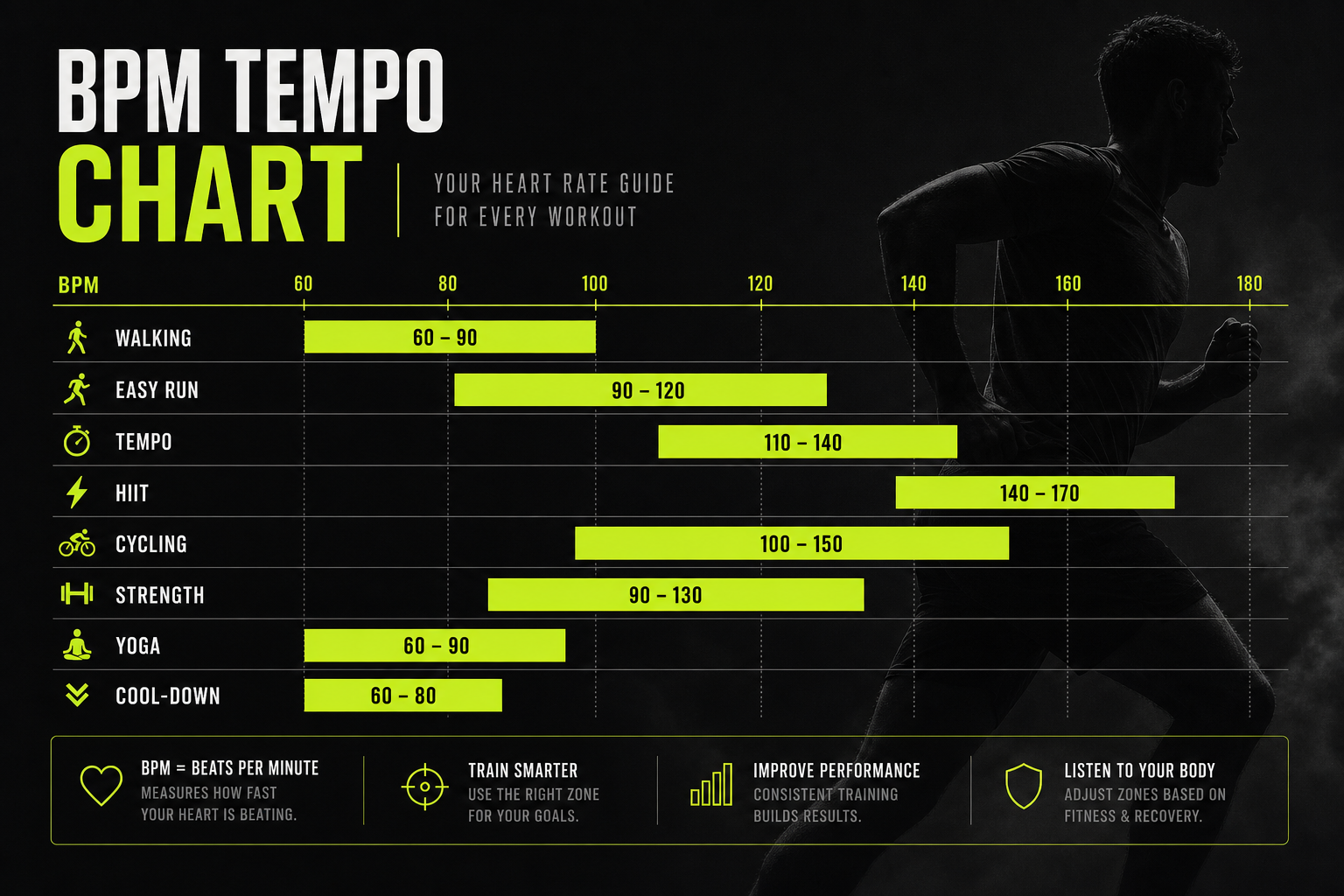
The exact BPM boundaries differ for every person, so read them off your own watch rather than copying a chart. In general terms:
| Zone | Effort | How it feels |
|---|---|---|
| 1 | Very light | Warm-up, walking, easy recovery |
| 2 | Light | Conversation is easy, steady aerobic work |
| 3 | Moderate | Breathing is deeper, talking in short sentences |
| 4 | Hard | Sustained, uncomfortable effort |
| 5 | Maximum | Short intervals you cannot hold for long |
That table is a general description of effort levels, not a prescription. Your own boundaries are the ones on your wrist.
How to view your zones during and after a workout
Apple’s steps are short:
- Open the Workout app on your Apple Watch.
- Start a cardio-focused workout, such as an outdoor run.
- Turn the Digital Crown to the Heart Rate Zone view.
That screen shows your current zone, your heart rate, the time spent in the current zone and your average heart rate, according to Apple Support.
After the session, open the Fitness app on your iPhone, tap Sessions, choose the workout, then tap Show More next to Heart Rate. You will see a graph with the estimated time you spent in each zone. This is the quickest way to find out whether your “easy” run was really easy, and it is a good reference when you plan music for next time.
How to edit a zone
If the automatic numbers do not match your testing, you can manually edit zones 2, 3 or 4 in Workout > Heart Rate Zones on the watch, or in the Apple Watch app on your iPhone. Zones 1 and 5 are not part of that manual edit, so set the middle three carefully.
Why music tempo belongs in your zone plan
Music is not just background. The research is specific enough to use.
In a 2010 laboratory study of 12 healthy male students cycling at self-chosen work rates, speeding up the music by 10% raised distance covered per unit time by 2.1%, power by 3.5% and pedal cadence by 0.7%. Slowing it by 10% reduced those figures by 3.8%, 9.8% and 5.9%. Average heart rate moved only slightly: up 0.1% with faster music and down 2.2% with slower music. The authors attributed the effect to a mix of motivation and distraction.

A 2020 study of 19 active women compared no music with music at 90 to 110 BPM, 130 to 150 BPM and 170 to 190 BPM. Perceived exertion changed more during endurance work (11%) than during high-intensity work (6.5%) between the fastest-music and no-music conditions. The researchers concluded that the benefits of music are more likely to show up in endurance exercise.
Two takeaways follow. First, tempo is a real lever on effort, so mismatched music can pull you out of your target zone. Second, steady aerobic sessions, the kind most zone training is built on, are where music helps most.
Note that both studies are small and the cycling study used a lab setting. Treat them as a direction, not a guarantee.
What Apple Watch does with music during workouts
Apple Watch gives you good music controls, and it helps to know exactly where they stop.
Auto-play when a workout starts
You can set media to play automatically when you begin a workout type. Per Apple’s support page, that media is either selected by Apple Music based on the workout type and your listening history (an Apple Music subscription is required) or something you pick yourself. Bluetooth headphones or speakers are required, because audio does not auto-play through the watch speaker.
Notice what drives the choice: the workout type and your history. Your live heart rate zone is not an input. If you slide from Zone 2 into Zone 4 on a hill, the playlist keeps going at its own pace.
Leaving your phone at home
You can still have music without your iPhone. Apple explains that you can play music stored on the watch, control music on your iPhone, or stream from Apple Music if you subscribe. When the watch is on Wi-Fi, you can stream music even if the iPhone is off, and the built-in GPS gives distance and speed on outdoor workouts without the phone. Cellular models stay connected away from the phone.
For a deeper look at the controls, see our walkthrough of Apple Watch autoplay and offline workout music, and for running without a phone, phone-free running music.
Build a playlist around your zones by hand
You can do a lot without any extra tools. This approach works well for steady sessions.
- Read your zone boundaries. Open Workout > Heart Rate Zones and note the BPM range for each zone.
- Pick a target zone for the session. An easy run might live in Zone 2, an interval day will touch Zone 4 and 5.
- Choose a tempo band for each zone. The 2020 study used 90 to 110, 130 to 150 and 170 to 190 BPM as its low, medium and high bands, which is a useful starting grid. Slow tracks suit lower zones, brisk tracks suit higher ones.
- Sort songs into playlists by tempo. Many music libraries and tools let you view or search by BPM. Build one playlist per zone band.
- Download them to the watch for offline play, then connect Bluetooth headphones.
- Review after the workout. Check the zone graph in Fitness and adjust the playlist if you drifted.
We go further on this method in how to create heart rate music zones and heart rate training music.
Examples by session type
- Easy Zone 2 run: keep the music steady and on the slower side of your running rhythm so you do not get pulled upward. Our guide to Apple Watch Zone 2 music covers setting the zone and matching the tempo.
- Tempo or threshold work: a mid-to-fast band supports sustained effort. Switching playlists mid-run is awkward, so many people queue a single long mix.
- Max-effort intervals: short bursts suit fast, high-energy tracks. See our Zone 5 music templates.
- Cooldown and breathing work: slow music helps you wind down. Our 60 to 80 BPM breathing music piece covers this end of the range.
Where manual playlists fall short in practice
A hand-built playlist is static, and workouts are not. Heart rate lags behind effort, hills and wind push you up, heat and fatigue shift your numbers, and a track list written for a perfect session rarely survives a real one. Skipping songs on a wrist screen while you run is also a nuisance.
That gap is the reason we built Repbeats, and the next section explains how we think about it.
Perspective: tempo should follow you, not the other way around
Most of the time, a workout playlist is a guess made on the couch. You pick songs you like, hope the pace fits, and then spend the run skipping tracks that are too slow or too frantic for the zone you are in.
We think the music should respond to the body. That is why Repbeats reads live data from wearables such as Apple Watch and Fitbit and synchronizes music tempo to heart rate, cadence and session intensity. Our auto-DJ updates the BPM every bar, so the soundtrack shifts smoothly instead of waiting for the next song.
The research points the same way. Tempo is tied to how hard people work and how hard it feels, so a soundtrack that rises as you climb toward Zone 4 and eases as you settle back into Zone 2 supports the plan your watch is already tracking.
It also works beyond hard cardio. The same approach drives our meditation programs, where calmer music supports relaxation. And because our privacy policy limits device access to workout data only, the data we read stays about your session.
Jordan Mills
Try adaptive music with your Apple Watch data
Repbeats is a fitness app for runners, cyclists, meditators and anyone who trains with a wearable. It matches music tempo to your heart rate, cadence and session intensity, with live data from devices like Apple Watch and Fitbit. You can search the music library, control playback in real time and schedule programs, for both cardio and meditation.
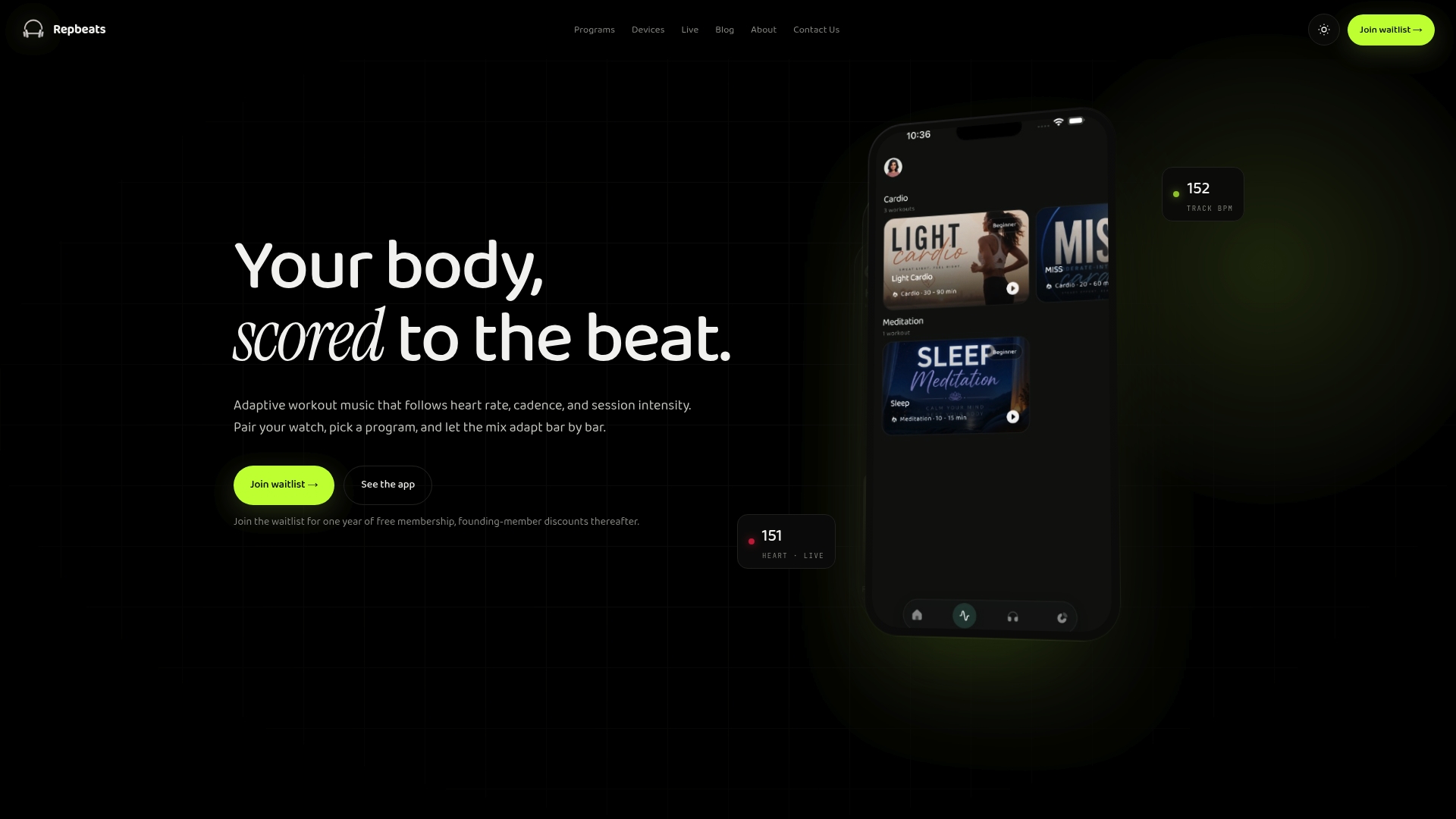
The waitlist launch includes a free year. See the details on the Repbeats app page, or start from repbeats.com. If you want to understand the data side first, read how wearables measure exercise intensity and our explainer on what Apple Watch adaptive music does and doesn’t do.
Practical tips for zone-based music sessions
- Check your date of birth in Health. Without it, the automatic zones cannot be calculated.
- Look at the numbers, not just the zone label. Your boundaries are personal, so use your watch’s BPM ranges.
- Expect monthly changes. Because max and resting values refresh monthly, revisit your tempo bands now and then.
- Use Bluetooth headphones. Workout auto-play does not use the watch speaker.
- Start with endurance sessions. That is where the research shows music has the clearest effect on effort.
- If you also use another wearable, our guide to Fitbit heart rate zones explains how its zones work.
- Heart rate health concerns. If your readings seem unusually high, or you feel dizzy, short of breath or have chest discomfort during exercise, stop and talk to your doctor before continuing.
FAQ
How do I get heart rate zones on Apple Watch?
Open the Workout app, start a cardio workout, and turn the Digital Crown to the Heart Rate Zone view. Make sure your date of birth is set in the Health app on iPhone, since the zones depend on it. After the workout, the Fitness app on your iPhone shows time spent in each zone.
Can I change my Apple Watch heart rate zones?
Yes, for zones 2, 3 and 4. Go to Workout > Heart Rate Zones on the watch or use the Apple Watch app on your iPhone. If you have tested your maximum heart rate, entering your own values can make the zones more reliable.
Can Apple Watch match my music to my heart rate zone automatically?
Apple Watch can start music automatically when a workout begins, chosen by Apple Music from the workout type and your listening history, or a playlist you select. It does not change tempo with your live zone. An adaptive app like Repbeats is built to do that, using heart rate, cadence and intensity from your wearable.
Can I listen to music on Apple Watch without my phone?
Yes. You can play music stored on the watch, or stream from Apple Music with a subscription when the watch has Wi-Fi or cellular. You need Bluetooth headphones, because the watch speaker is not used for auto-play during workouts.
Sources
- View Heart Rate Zones on Apple Watch, Apple Support
- Apple Watch running metrics: watchOS 9 guide, 9to5Mac
- I’ve worn an Apple Watch for 10 years, Tom’s Guide
- Effects of music tempo upon submaximal cycling performance, Scandinavian Journal of Medicine & Science in Sports
- The Psychophysiological Effects of Different Tempo Music, Frontiers in Psychology
- Play audio during a workout on Apple Watch, Apple Support
- Play music on Apple Watch, Apple Support
- Use Apple Watch without its paired iPhone, Apple Support